macOS utility · No account required

Reclaim your Mac.
Space. Speed. Control.

TrimyMac finds and removes gigabytes of hidden junk — app caches, dev tool waste, old downloads, and duplicates — in minutes.

Download Free → See Features
Notarized by Apple

macOS 13+ · Free up to 500 MB · No subscription required to start

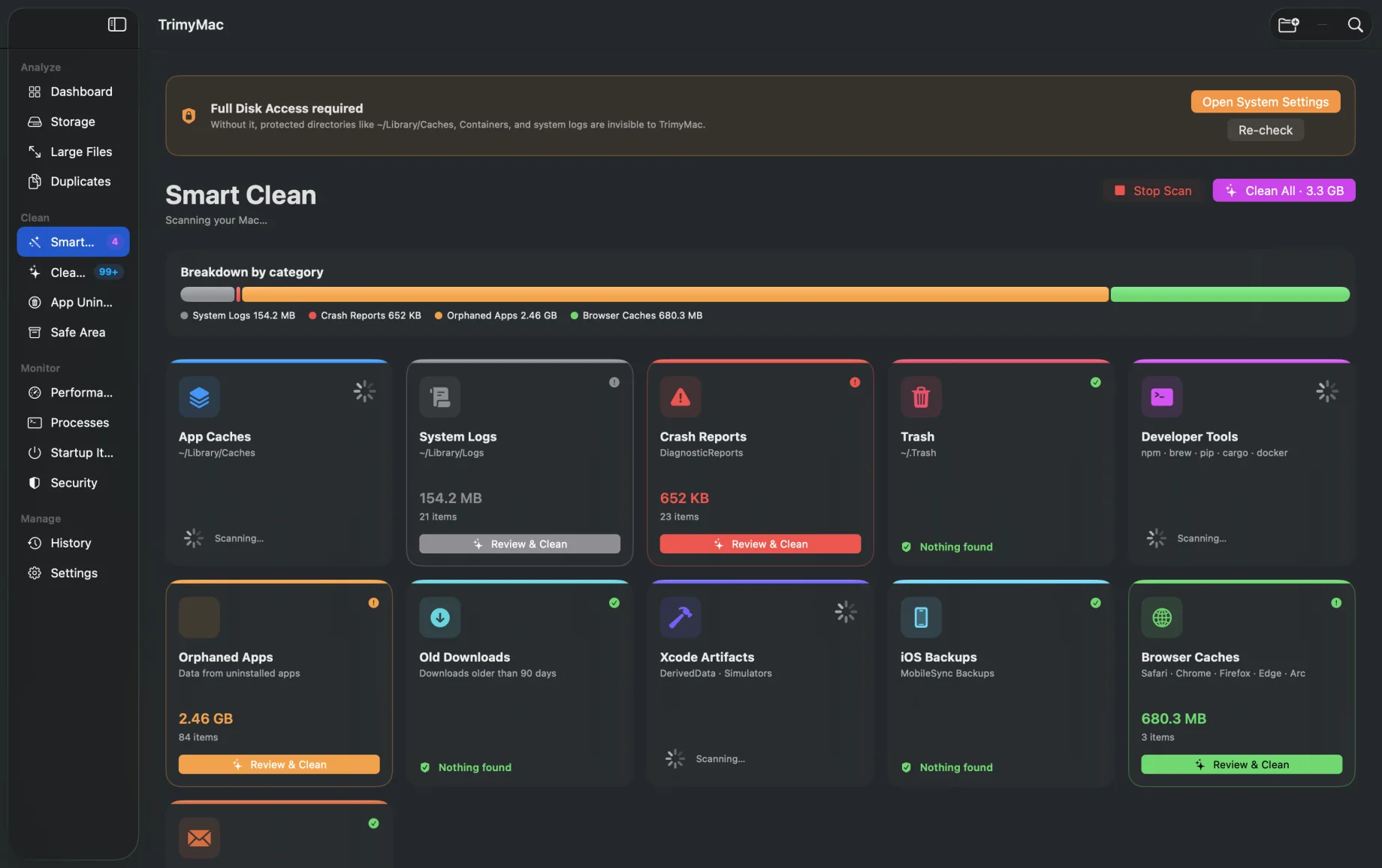
TrimyMac — Smart Clean
TrimyMac Smart Clean — 9 junk categories scanned, orphaned apps 2.46 GB, browser caches 680 MB found
Also included →
9
Junk categories scanned
500 MB
Free before upgrade
0
Telemetry or tracking
100%
Local — no cloud, no account

Why Your Mac Slows Down — And How to Fix It for Free

If your Mac keeps showing "Your disk is almost full" warnings, spinning the beach ball, or running hot under light load, the culprit is almost never the hardware. It's often the invisible layer of junk that accumulates over months and years: app caches, system logs, Xcode artifacts, iOS backups, duplicate files, and developer tool waste. A typical three-year-old Mac carries 10–40 GB of this hidden garbage. macOS gives you no built-in tool to find or remove it safely.

Where Does Mac Storage Go?

App caches are the single biggest drain. Every app on your Mac — Chrome, Slack, Spotify, Xcode, Final Cut — writes temporary files meant to speed things up. Most apps never clean these automatically. After a year or two of normal use, caches alone can consume 5–15 GB. The cache for a single version of Xcode's simulator runtimes can exceed 30 GB.

Developer tools make storage bloat dramatically worse. Xcode derived data — intermediate build files that are completely regenerable — routinely grows to 20–80 GB. npm's global module cache, pip's package downloads, Homebrew's cached formula downloads, and Docker image layers each add more. None of these clean themselves.

iOS device backups stored by Finder or iTunes are another major space consumer. A single full iPhone backup is 3–8 GB. Some users also keep backups from devices they no longer own.

Duplicate files can hide across folders. Photos synced from iCloud, documents copied to project archives, and downloads saved more than once can be hard to spot manually. Finding them may mean checking folders one by one.

What Happens When Your Mac Runs Low on Space?

macOS needs free disk space to function properly. Virtual memory swap files, time machine local snapshots, and Core Data scratch space all require headroom. When free storage drops below 10%, you'll notice apps taking longer to launch, the fan spinning under light load, slow file saves, browser tabs crashing, and system updates refusing to install. The fix is not buying a new Mac or subscribing to more iCloud storage — it's removing junk that should have been cleaned months ago.

How Does TrimyMac Clean Your Mac?

TrimyMac is a free Mac disk cleaner built entirely in Swift using Apple's native frameworks. It scans nine categories of junk in a single pass: app caches, system logs, crash reports, Xcode build artifacts, iOS device backups, developer tool caches (npm, pip, Homebrew, Docker, CocoaPods), browser caches, mail attachments, and language pack waste. The scan takes under 30 seconds on most Macs and surfaces exactly what it found — by category, by size — before touching anything.

Nothing is permanently deleted without your confirmation. Cleaned files go to TrimyMac's Safe Area first, giving you a recovery window if you change your mind. The Duplicate Finder uses SHA-256 hashing for exact byte-level matching — zero false positives. The Storage Analyzer shows your entire file tree sorted by size, so you can instantly find what's consuming the most space.

What's Included in TrimyMac's Free Tier?

TrimyMac's free tier covers all nine cleaning categories, the duplicate finder, storage analysis, performance monitoring, and security scan with no time limit and no account required. The only restriction is a 500 MB cleanup cap in total. Most first-time users find that 500 MB is enough to feel an immediate difference. For a full deep clean (often 5–30 GB on a developer's Mac), Pro unlocks unlimited cleanup at $9.99/year or a one-time $24.99 lifetime purchase.

Compared to CleanMyMac X ($39.99/year) or Disk Doctor ($4.99 with limited features), TrimyMac offers the same core cleaning capability at a fraction of the cost — with zero telemetry, no background processes, and no cloud connection. Everything runs entirely on your Mac.
Everything your Mac's storage needs

TrimyMac covers every angle — one tool instead of five.

🧹

Smart Clean

Automatically detects app caches, system logs, crash reports, Xcode artifacts, iOS backups, and dev tool waste across npm, pip, Homebrew, Docker, and more.

💾

Storage Analysis

See every file on your Mac sorted by size. Find what's secretly consuming hundreds of gigabytes — large files, hidden directories, and forgotten downloads.

🔁

Duplicate Finder

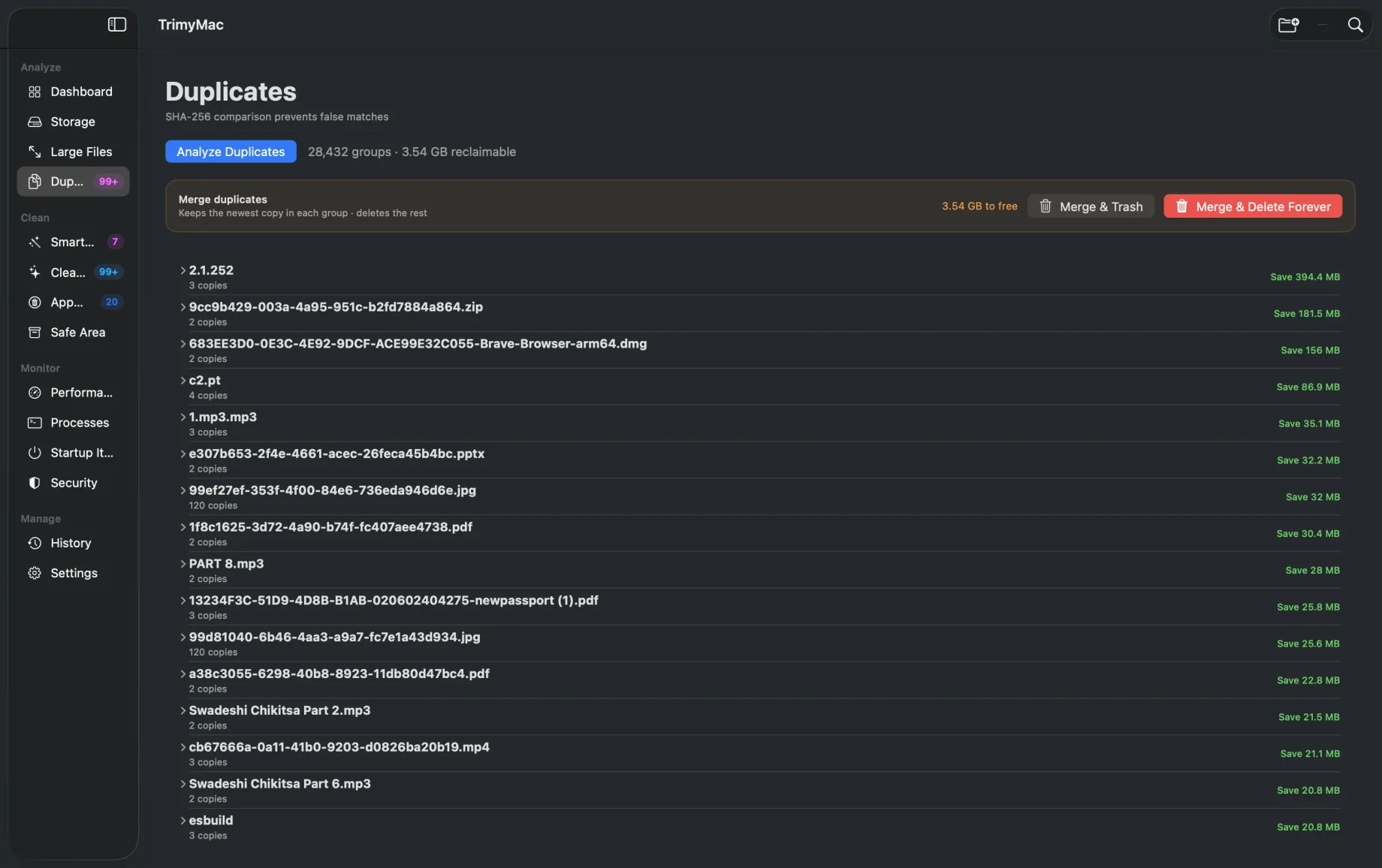
SHA-256 hashing finds exact duplicates — zero false positives. Recover the space taken by identical photos, documents, and archives you forgot you copied.

⚡

Performance Monitor

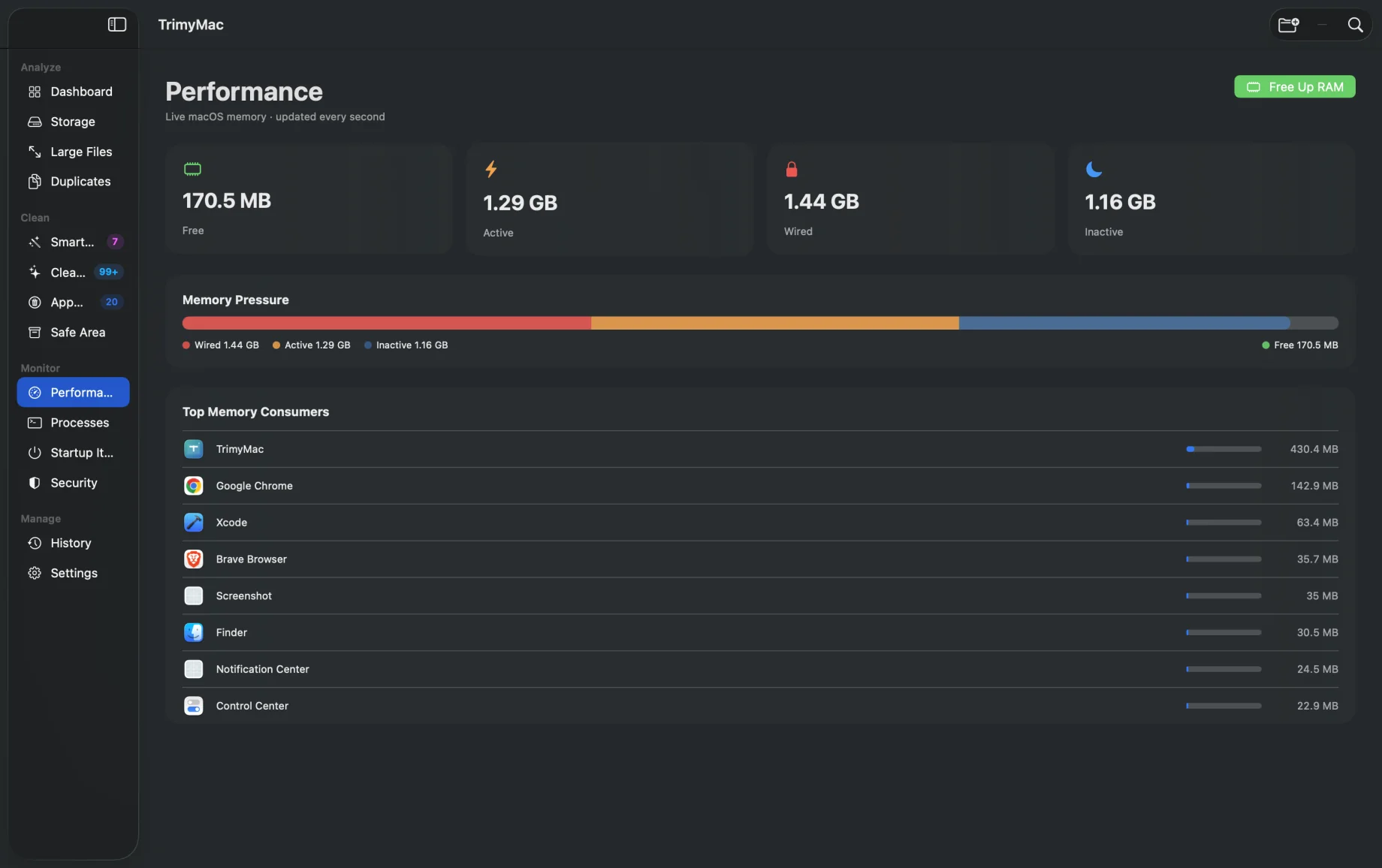
Live memory pressure graph — wired, active, inactive, free — plus a real-time list of top memory consumers with the option to force-quit runaway apps.

🛡️

Security Scan

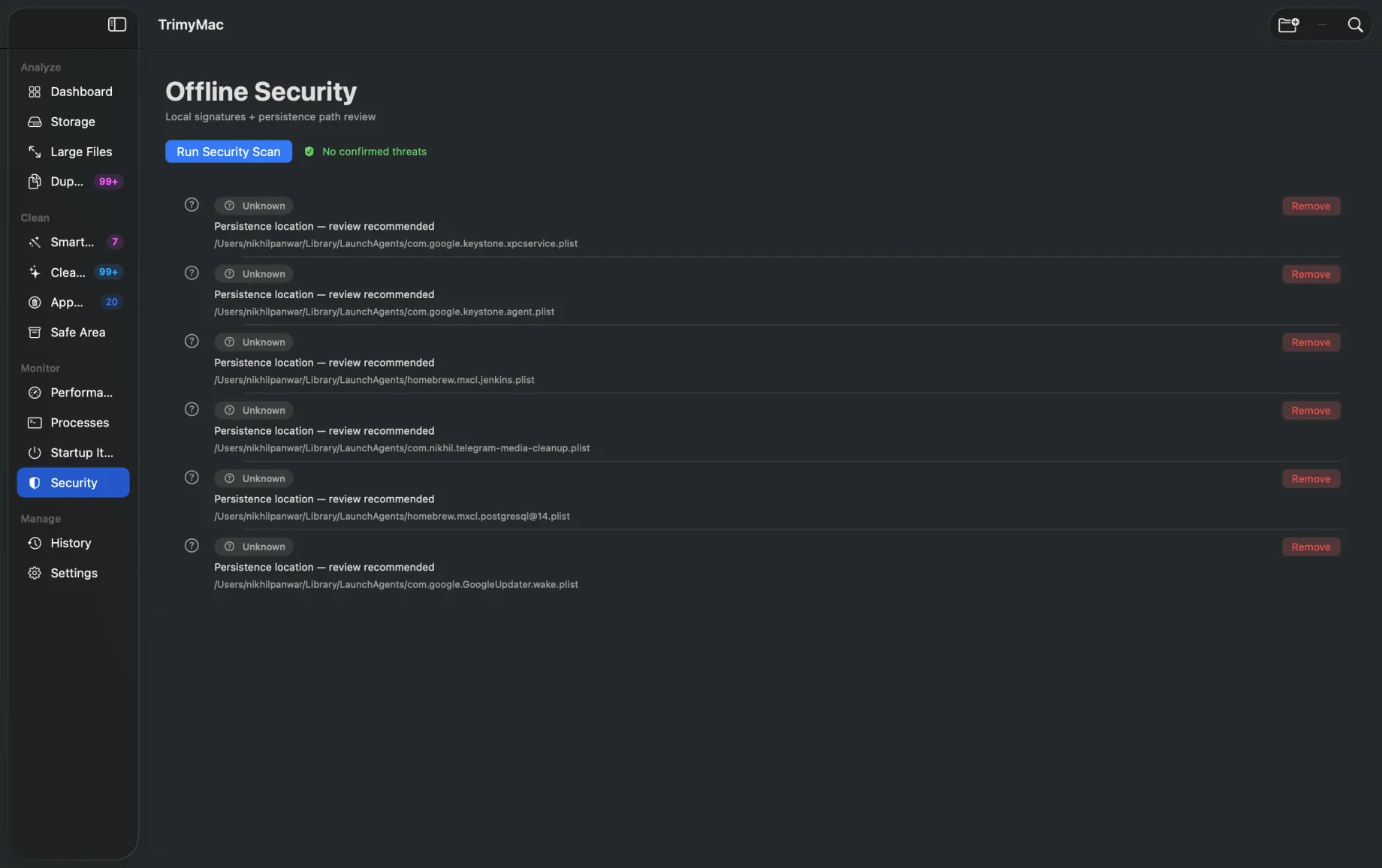
Audits persistence locations (LaunchAgents, LaunchDaemons) and cross-checks against a local signature database to surface suspicious files.

📦

Safe Area

Nothing is permanently deleted until you say so. Files go to Safe Area first — restore or delete forever from one place with complete confidence.

Every view. Real data.

These screenshots are from an actual Mac — no marketing fluff.

TrimyMac — Smart Clean
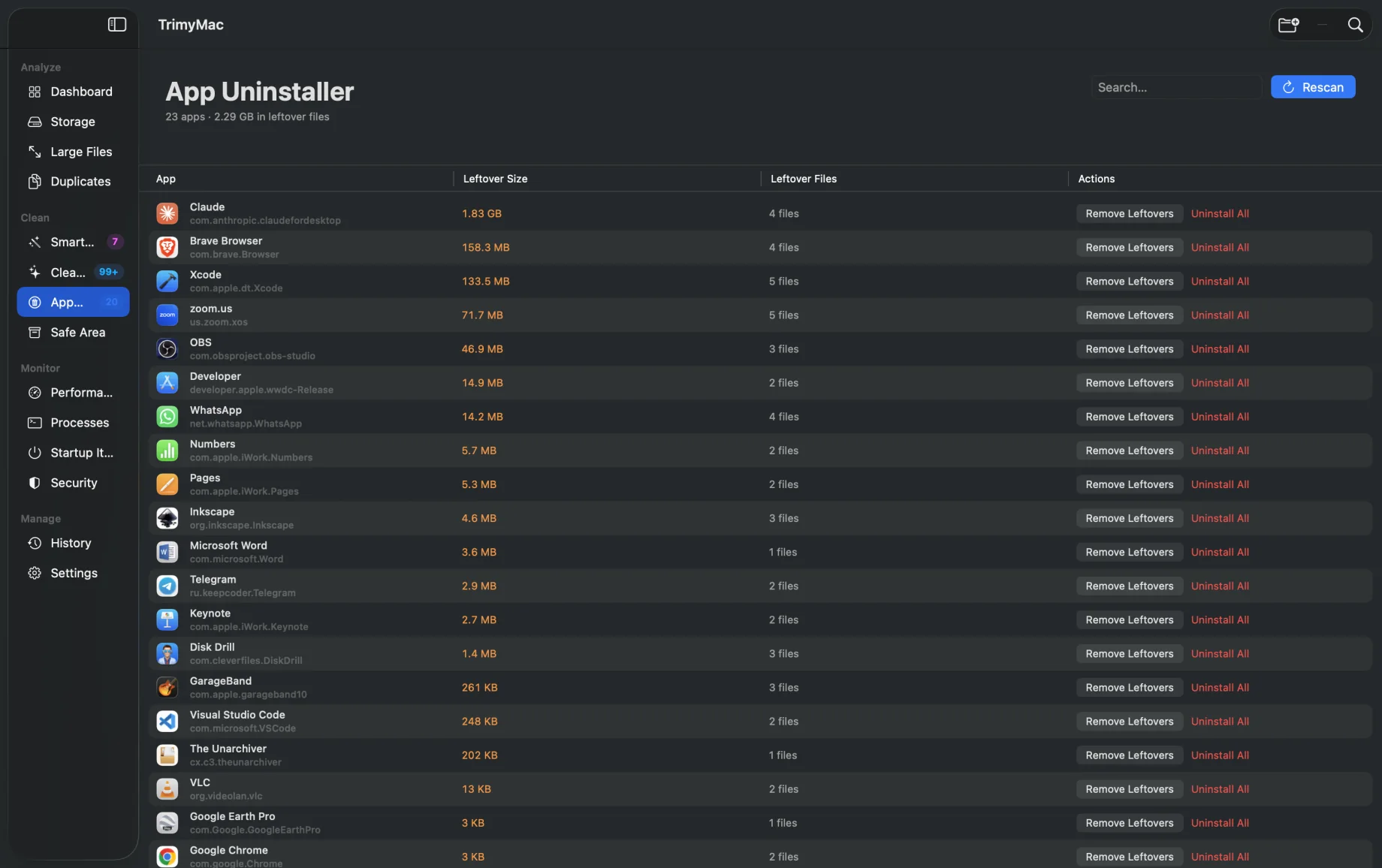
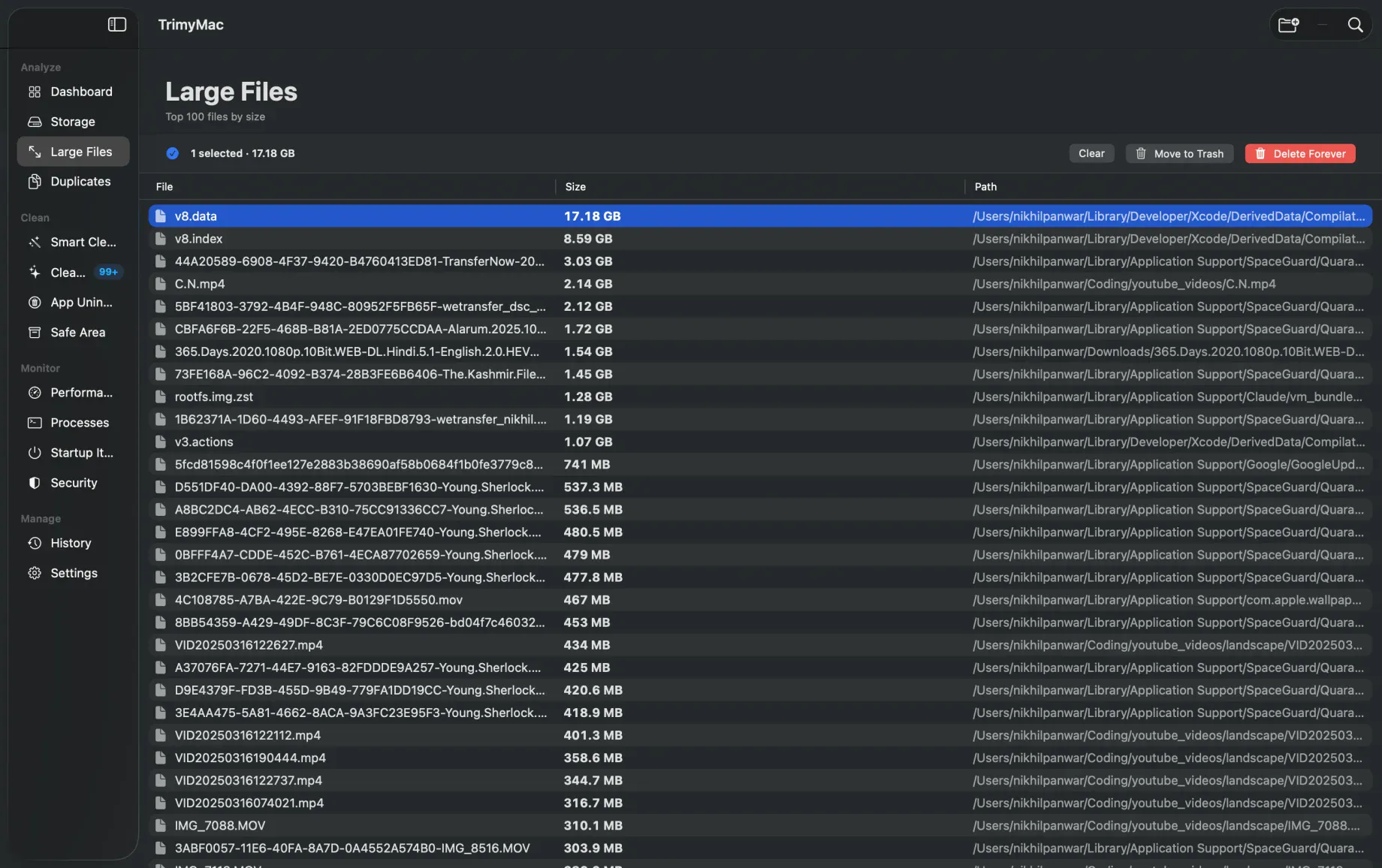
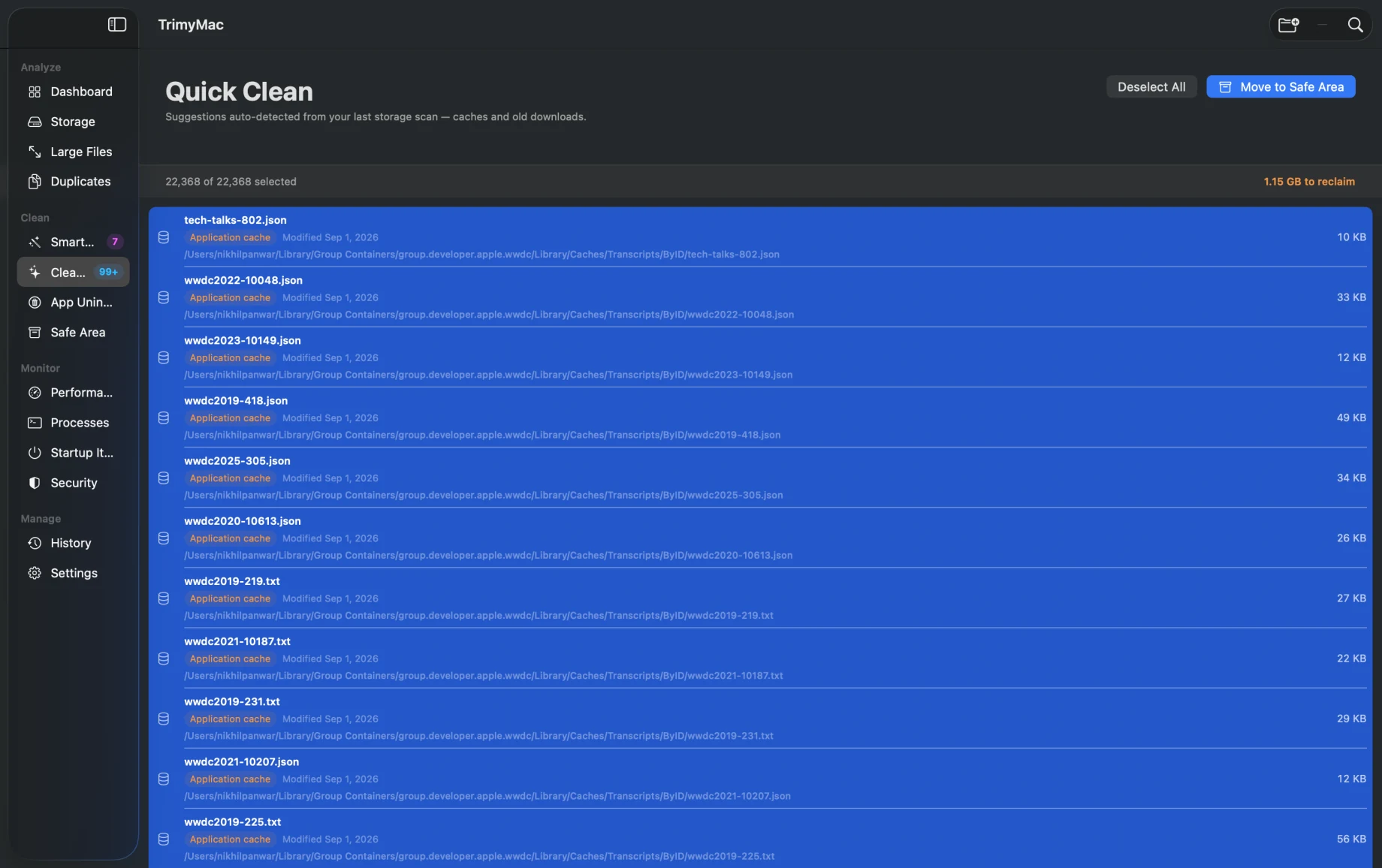
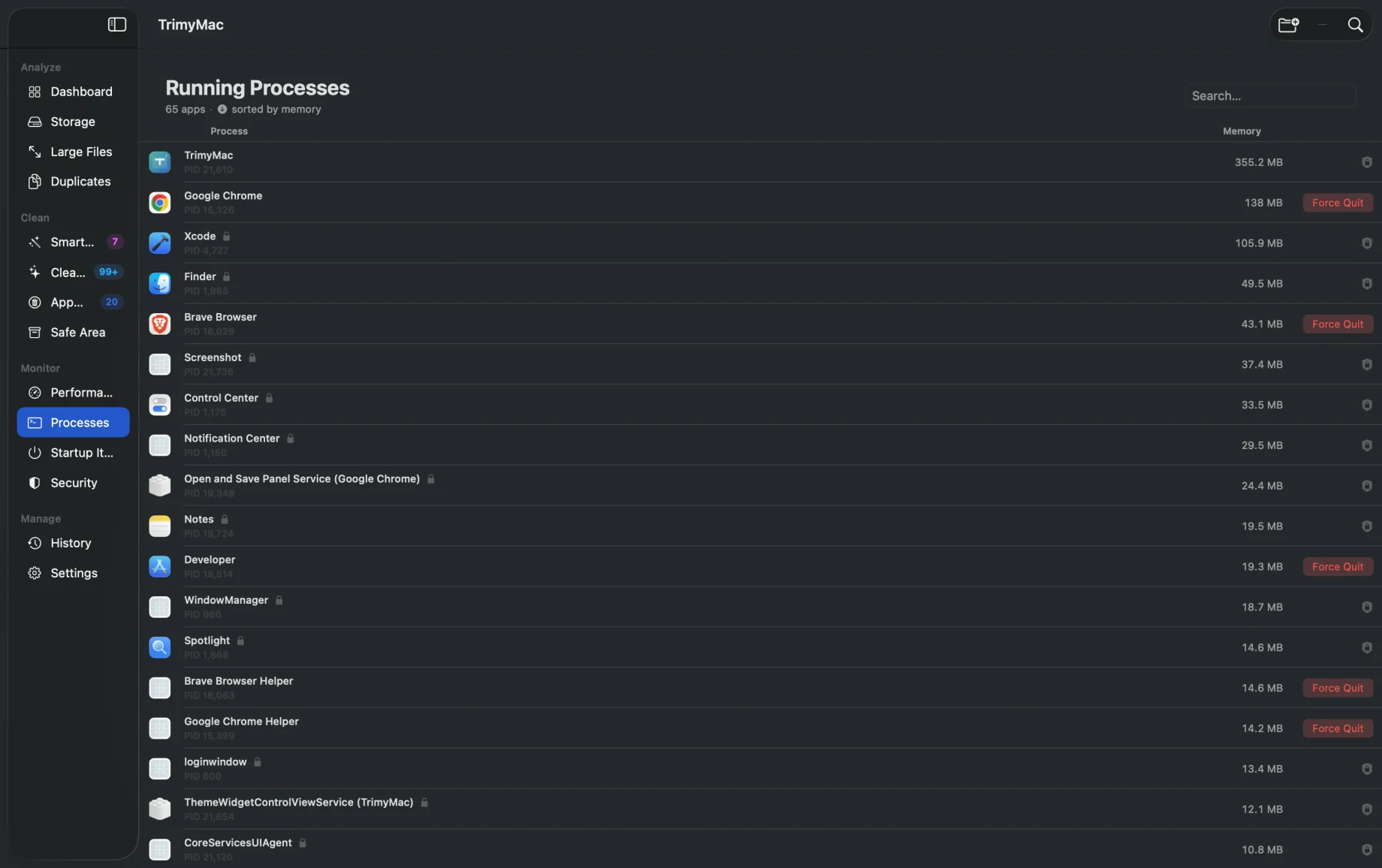
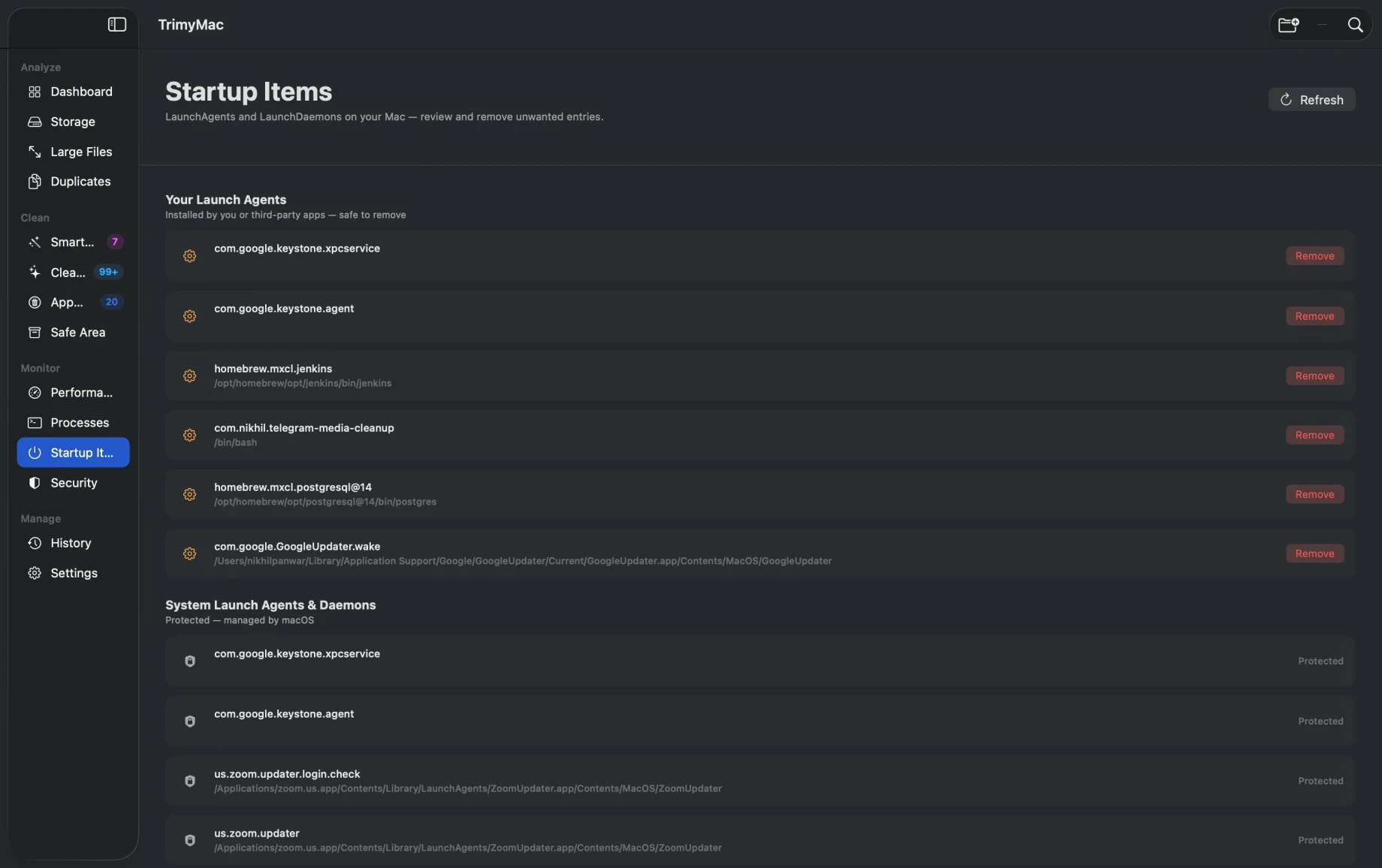
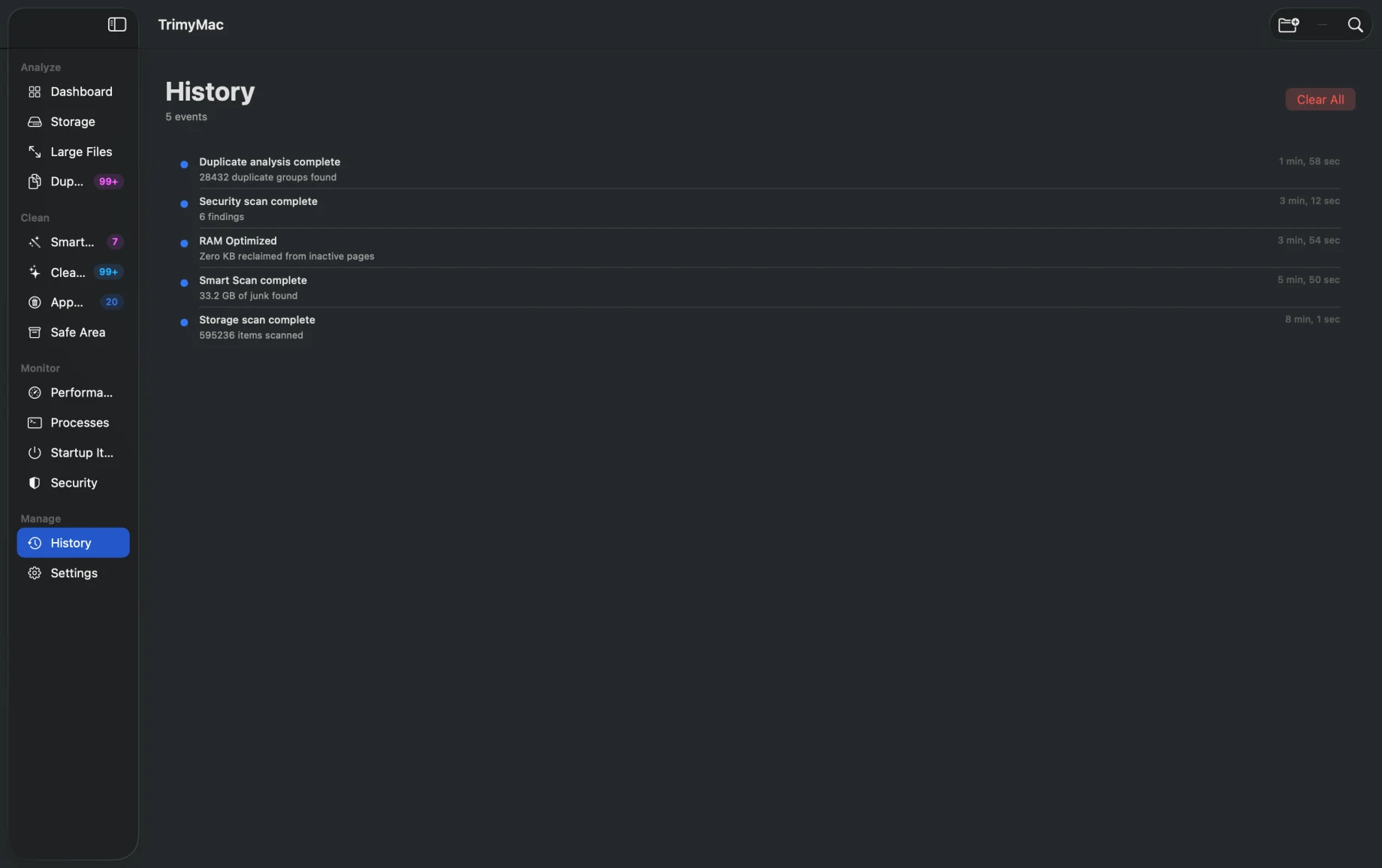
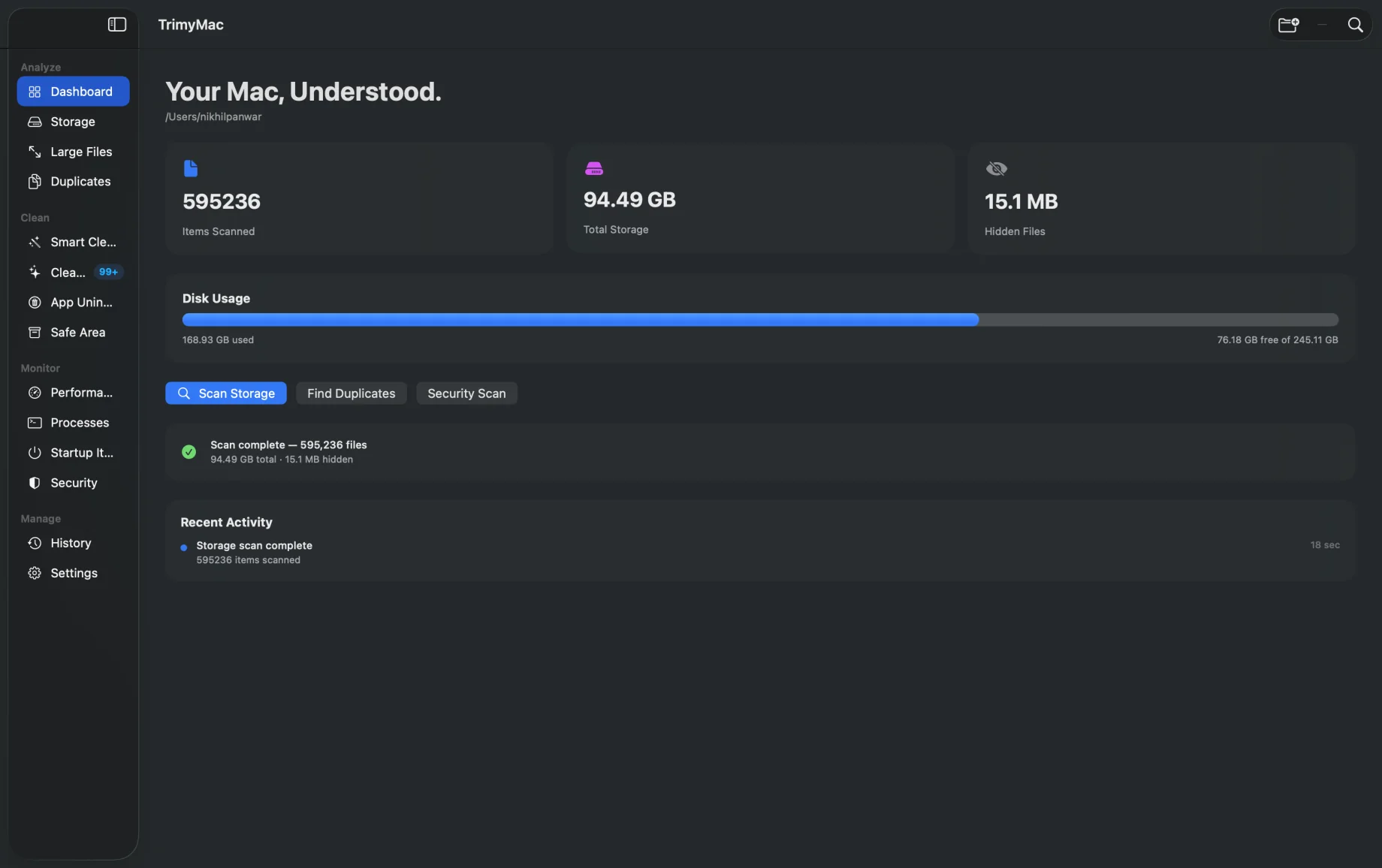
TrimyMac Smart Clean — 9 categories scanned, orphaned apps 2.46 GB found TrimyMac dashboard — 595,236 files scanned, 94.49 GB, disk usage bar TrimyMac Large Files — v8.data 17.18 GB at top of sorted list TrimyMac Duplicates — 28,432 groups found, 3.54 GB reclaimable TrimyMac Cleaner — 31,368 items selected, 1.12 GB to reclaim TrimyMac App Uninstaller — Claude 1.83 GB, Xcode 133 MB in leftover files TrimyMac Performance — 170.5 MB free, top memory consumers list TrimyMac Running Processes — 65 apps, sorted by memory TrimyMac Startup Items — LaunchAgents list with Remove buttons TrimyMac Security scan — 6 LaunchAgent persistence locations flagged TrimyMac History — activity log showing all scan and clean events

Smart Clean — 9 junk categories scanned in parallel. Orphaned apps: 2.46 GB. Browser caches: 680 MB. Review every item before anything is deleted.

Clean your Mac in three steps

1

Scan

Hit "Scan All" from the Smart Clean section. TrimyMac scans 9 junk categories in parallel — fully in the background. Browse other sections while it runs.

2

Review

See exactly what was found — sorted by size, name, or date. Deselect anything you want to keep. No surprises, no hidden bulk actions.

3

Clean

Move to Safe Area (reversible), send to macOS Trash, or delete permanently. Your choice at every step — TrimyMac never acts without asking.

Start free. Upgrade when ready.

Try TrimyMac with no account, no card. Upgrade only when you want unlimited cleanup.

Free
$0
Free forever
  • ✓ Smart Clean (all 9 categories)
  • ✓ Storage analysis & Large Files
  • ✓ Duplicate finder
  • ✓ Performance monitor
  • ✓ Up to 500 MB cleanup total
  • — Unlimited cleanup
  • — Scheduled auto-clean
Download Free
Pro Lifetime
$24.99
one-time purchase
  • ✓ Everything in Pro Annual
  • ✓ Pay once, own forever
  • ✓ Lifetime updates
  • ✓ No recurring charges
  • ✓ Safe Area — no expiry
  • ✓ Priority support
Buy Lifetime — $24.99

Common questions

How do I activate my license key?

Open TrimyMac → Settings → in the License section click Enter License Key / Restore Purchase, paste the key from your confirmation email, and click Activate. Pro unlocks instantly. Full step-by-step instructions are in the setup guide.

How do I move my license to a new Mac?

Your license works on up to 3 Macs at once. To move it when you are at the limit, open Settings → License → Deactivate on this Mac on the old machine to free a slot, then activate with the same key on the new Mac. See the license management guide.

I lost my license key — how do I get it back?

Retrieve it anytime from app.lemonsqueezy.com/my-orders using your purchase email, or email [email protected] with your order number and we will resend it. More in the full guide.

Is TrimyMac safe to use?

Yes. Files are never permanently deleted without your explicit confirmation. By default, cleaned items go to the Safe Area — a recoverable holding folder — not the bin. You choose to permanently delete from there. System-critical files and process containers are hard-blocked from cleanup.

Does TrimyMac need Full Disk Access?

For complete results — yes. Without it, protected directories like ~/Library/Caches, app containers, and system logs are invisible to TrimyMac. Granting Full Disk Access in System Settings → Privacy & Security gives it the same access as Finder. TrimyMac never leaves your device and has zero telemetry.

What's included in the free tier?

Everything — all 9 Smart Clean categories, storage analysis, duplicate finder, performance monitoring, and security scan. The only limit is 500 MB of total cleanup. Once you hit that, you're prompted to upgrade. Most people find this is plenty for a first-time clean.

What's the difference between annual and lifetime?

Annual ($9.99/yr) is billed once per year and you can cancel anytime. Lifetime ($24.99) is a single one-time payment with no recurring charges. Both include all Pro features and future updates. If you plan to use TrimyMac for more than ~2.5 years, lifetime pays for itself.

Does TrimyMac send any data off my Mac?

No. TrimyMac is entirely local. No telemetry, no usage analytics, no cloud processing. Your file list, scan results, and subscription status never leave your device.

What macOS version is required?

macOS 13 Ventura or later. TrimyMac is a native SwiftUI app built with the latest Apple frameworks — it will continue to receive updates as new macOS versions ship.

How do I clear cache on my Mac?

Open TrimyMac and click Smart Clean. It automatically finds and categorizes all app caches — browser caches (Chrome, Safari, Firefox), system caches, app caches (Slack, Spotify, Zoom), and developer caches — showing you the exact size of each before you delete anything. Manually, you can open ~/Library/Caches in Finder, but many caches are inside protected app containers that require Full Disk Access to reach. TrimyMac handles all of this in one pass.

What is taking up space on my Mac?

Open the Storage Analyzer in TrimyMac to see your entire file system sorted by size. Typical space hogs include: Xcode derived data (20–80 GB), iOS device backups (3–8 GB each), Docker images, node_modules directories, old Downloads, and large video files. macOS's own "About This Mac → Storage" view is notoriously inaccurate — TrimyMac gives you exact file-level sizes.

How do I speed up a slow Mac?

A slow Mac is usually caused by low free storage, too many startup items, or runaway background processes — not hardware age. TrimyMac addresses all three: Smart Clean frees up disk space, Startup Items Manager shows everything that launches at login (disable what you don't need), and the Performance Monitor shows live memory pressure and top memory consumers so you can quit apps that are hogging RAM.

How do I remove duplicate files on my Mac for free?

TrimyMac's free tier includes the Duplicate Finder at no cost. It uses SHA-256 hashing to find exact byte-for-byte copies across your entire drive — photos, documents, archives, videos — regardless of filename or location. Results are grouped by duplicate set so you can review before deleting. The 500 MB free-tier limit applies to cleaning, but scanning is always free.

How do I completely uninstall apps on Mac?

Dragging an app to the Trash only removes the main .app bundle. It leaves behind support files in ~/Library/Application Support, preferences in ~/Library/Preferences, caches in ~/Library/Caches, and launch agents in ~/Library/LaunchAgents — often several hundred MB per app. TrimyMac's App Uninstaller finds all associated files for any app and removes everything in one step.

TrimyMac vs CleanMyMac — which is better?

CleanMyMac X costs $39.99/year. TrimyMac's Pro is $9.99/year — with a genuine free tier, no subscription required to start. Both apps scan app caches, junk files, and duplicates. TrimyMac's key differences: zero telemetry (CleanMyMac collects usage analytics), no background agent running when you're not using it, and a one-time lifetime option for $24.99. If you're a developer, TrimyMac also goes deeper on Xcode artifacts, npm, pip, Homebrew, Docker, and CocoaPods caches.

Your Mac has more room than you think.

Download TrimyMac free and find out exactly where your storage went.

Download Free →